Persona 5 The Phantom X Black Screen Issues: Troubleshooting Solutions
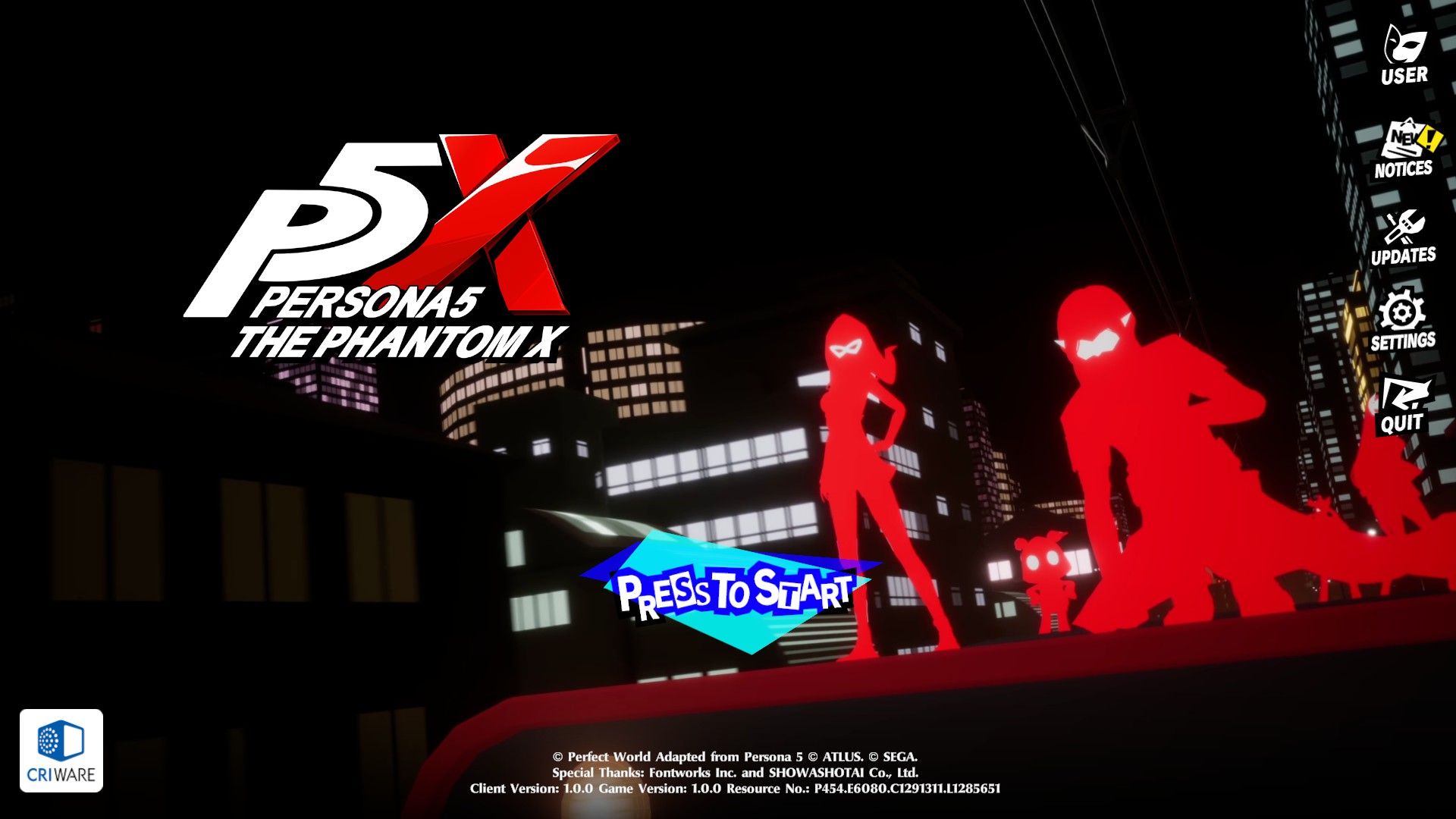
Black screen problems in Persona 5: The Phantom X usually come from graphics, cache, or connection issues, and the fixes differ slightly between PC and mobile. Below are practical steps players have reported working for both platforms.
Common PC Fixes
Many PC players report a black screen right after launch, after login, or stuck on the “Take Your Time” loading screen.
- Update graphics drivers and Windows: Make sure your Nvidia/AMD/Intel GPU drivers and Windows Updates are fully current, as outdated drivers are a major cause of black screens and crashes.
- Run as administrator and check compatibility: Right‑click the game EXE → Properties → Compatibility → enable “Run this program as administrator”; some guides also suggest trying Windows 7/8 compatibility and disabling fullscreen optimizations.
- Verify or repair game files: On Steam or the launcher, use “Verify integrity of game files” or “Repair” to fix missing/corrupt data that can hang the game on a black screen.
- Delete cache and config folders: Some PC players fix stuck start/black screens by deleting the game’s cache folder under their user AppData (e.g., a P5X cache directory), which the game then recreates on next launch.
If the game hard-crashes your PC in specific scenes (like in the protagonist’s room), getting through that segment quickly after verifying/repairing files has helped some users stabilize the game afterward.
Common Android & iOS Fixes
On mobile, players often see a black screen after login or after pressing “Start,” with no error message.
- Check device compatibility and OS version: Ensure your phone meets minimum specs and is on a supported Android/iOS version; older or unsupported devices can hang at a black screen.
- Clear game cache and restart: On Android, clear the app cache (and, if needed, data), then restart the device before relaunching; this often resolves stuck black screens after updates.
- Reinstall on stable network: Fully uninstall, reboot, and reinstall over a stable Wi‑Fi connection; partial or corrupt downloads are a frequent cause of infinite black loading on mobile.
If the issue persists, watch for posts or notices on the official bug/issue page, as some black screen problems have been acknowledged and patched via hotfixes.
When Nothing Works
If all local fixes fail:
- Check recent official issue reports to see if your device/GPU or a specific patch is listed as problematic and whether a fix is in progress.
- Collect your specs, logs, and a clear description of where the black screen happens, then post in official or Steam discussion threads; support staff and other players often point to workarounds that are hardware‑specific.